
Manage Recurring Journal Entries
|
Content
|
|---|
You can use the Recurring Transaction option to set up and process recurring journals. Regular or repeat orders are easily processed through this option.
Set a Recur Schedule for the Journal
Steps
- From the Accounting module, select Recurring button from the menu. A search list with different tabs is displayed.
- Go to the Setup Recurring tab to view a list of open and closed journals that you can recur.
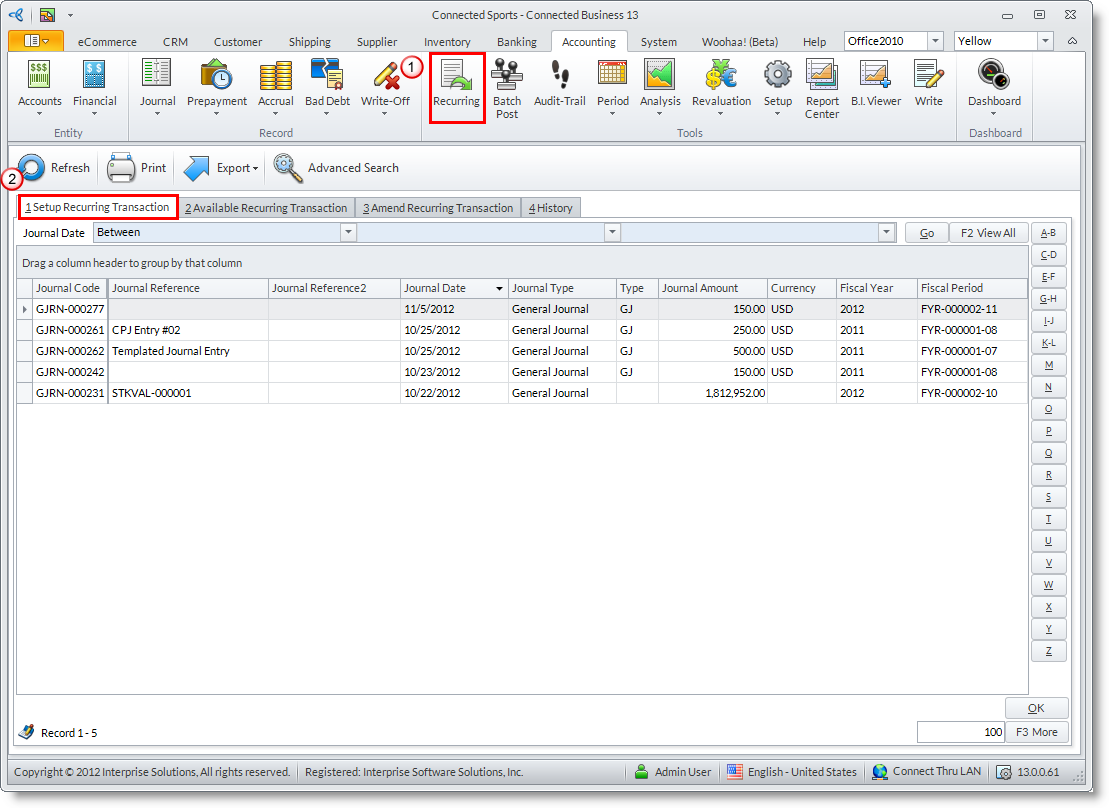
- Select a journal record in the list to display the Setup Recurring Transactions form.
- Enter a Description for the recurring transaction.

- Check the Active checkbox to set the recur schedule to active status.
- Select the Interval of the recurrence. You can specify Recurrence Options for any interval you choose e.g. every first Monday of the month.
- You can specify the Effectivity or leave it as indefinite.

Process the Recurring Transactions
- Go to the Available Recurring Transactions tab. The recurring journal schedules list will display.
- Select the recurring document in the list(double click on the recurring document or documents). The Process Recurring Transaction Wizard will be displayed.

- Here are the steps to follow in the Process Recurring Transaction Wizard.
Step 1
Click Next button to start.
Step 2
Select the documents to process. The journal documents are grouped by payee. Click Next button to continue.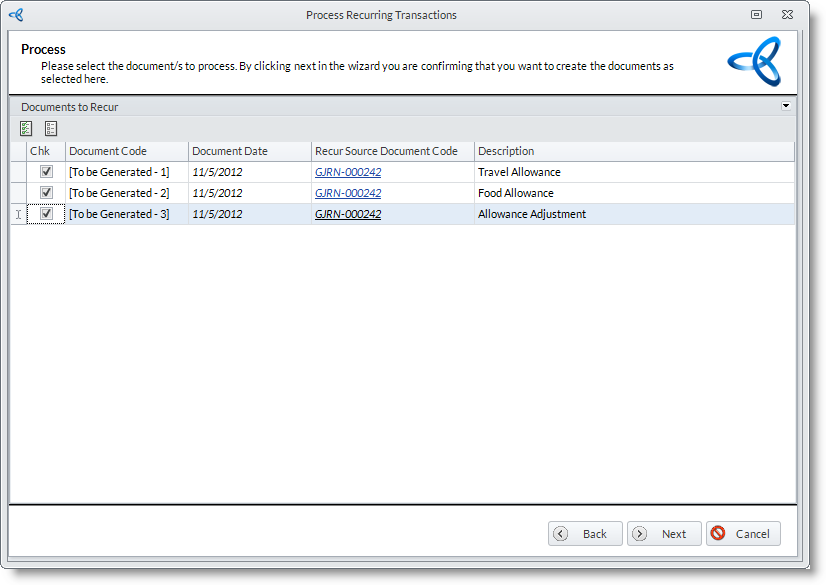
Step 3
The progress of processing the journals will follow. The processed journals are displayed. You may drill down on the Document Code to view the journal document. Click Next button to continue.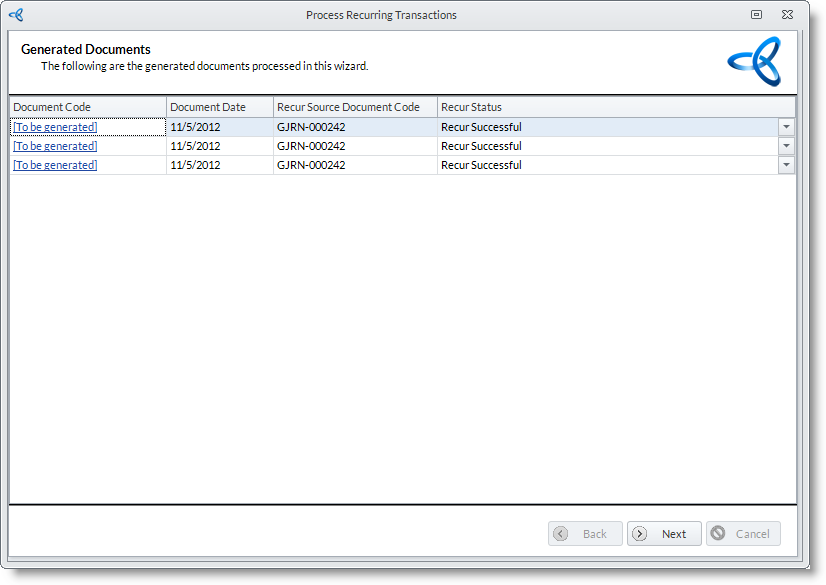
Step 4
Click Finish button to process and close the wizard. You may view the processed journals from Journals > Find Journals.

To view a history of recently processed recurring transactions, click on the History tab to view a history or recently processed recurring transactions.
Change the Recur Interval of the Order
- Go to the Amend Recurring Transactions tab.
- Select the recurring order transaction from the list and you will be brought back to the Setup Recurring Transactions window to change the schedule of the recurring order.